Getting started with Telecloud took us longer than it should have. We bought resources, looked for our servers, landed on another login page, and reset passwords more times than we would like to admit.
Eventually, we moved a production fintech stack onto it: application servers, a dedicated PostgreSQL server, staging, and encrypted backups in object storage. Telecloud runs on Huawei Cloud Stack. Once we understood how its pieces fit together, it became much easier to work with.
This is the guide we wish we had at the start. It follows our setup experience, from buying capacity to keeping servers reachable and backed up. Menu names, quotas, images, and regional availability may differ in your account. Treat the examples as a starting point and check your own console before applying them.
1. Start here: the shop and the console are different
There are two places you will use regularly:
| Where to go | What you do there |
|---|---|
| Telecloud shop | Buy resources such as compute, disks, Elastic IPs, and storage. |
| Cloud console | Create and manage servers, networks, security groups, and storage buckets. |
Start at the shop, then click Console in the top navigation bar. That is the button that takes you to the place where the actual cloud configuration happens.
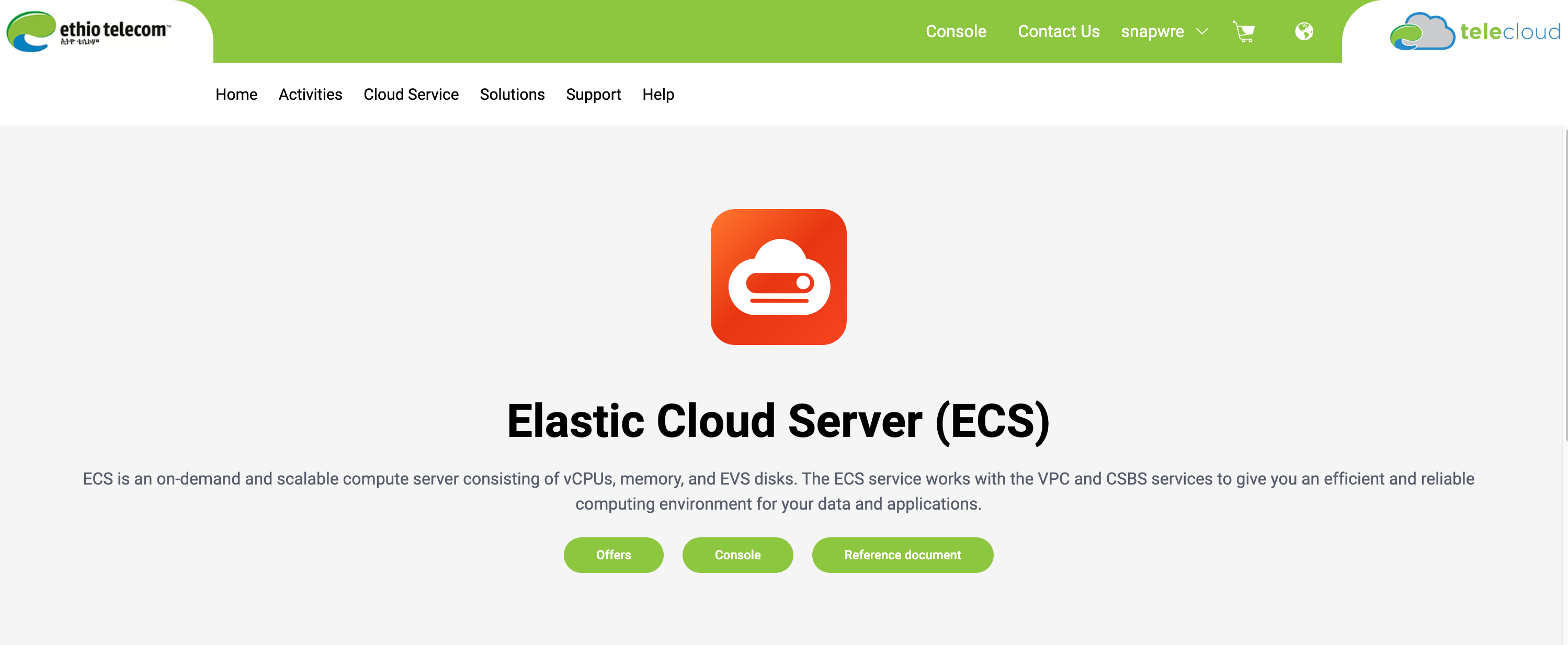
For our account, Console opens the Telecloud authentication page. After signing in, we land on the tenant console. If a saved login link stops working, go back to the shop and click Console again to begin a fresh login flow.
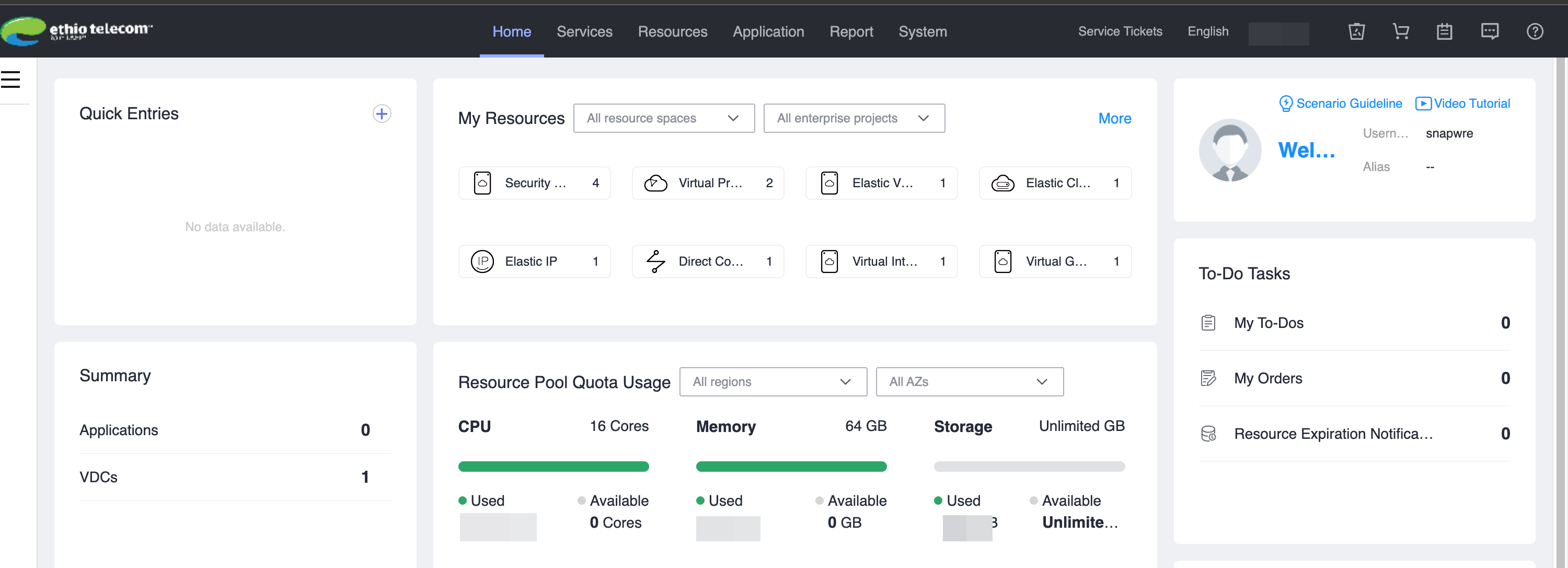
The Chrome password problem that kept catching us
We had repeated password resets on both platforms. In our Chrome setup, saving or updating one login kept replacing or offering the password for the other. It looked like our credentials had stopped working, but sometimes the browser was filling the wrong password.
Before clicking Forgot password, check which platform you are on and which saved entry Chrome has selected. Keep two clearly named entries in your password manager: Telecloud shop and Telecloud console. Check the exact login address on each entry, and inspect Chrome's update-password prompt before accepting it.
In the console, also look under My Space → My Settings → MFA Device and bind an MFA device if available for your account.
2. Buy capacity, then create the server
In our prepaid workflow, buying resources in the shop added capacity to our account. It did not automatically create a running server.
The sequence was:
- Buy the resources in the shop.
- Open Console and select the region where you bought them.
- Check the available compute, memory, and disk quota.
- Create a VPC and subnet in that region, then prepare a security group.
- Create an Elastic Cloud Server (ECS) using that network and your purchased capacity. ECS is the virtual server, or VPS, you will log into.
On the ECS page, we found “to unhide details” beside the quota information. Expanding it showed the remaining CPU and memory per availability zone. For example, two purchases of 2 vCPU and 4 GB should give you 4 vCPU and 8 GB of capacity in the relevant pool.
Our create form showed 0.00 ETB/hour when the selection was covered by prepaid capacity. If yours shows an unexpected charge, check the region, availability zone, flavor, disks, bandwidth, and purchased quota before submitting. Confirm the order summary too; the displayed hourly figure alone is not a guarantee that every selected resource is covered.
3. Choose a region with your workflow in mind
The regions we worked with were ET-CLOUD-AA1, ET-CLOUD-AA2, and ET-CLOUD-DB1. Check both resource availability and automation access before deciding where to deploy.
Our Terraform workflow using the Huawei Cloud Stack provider worked with AA1. We could not use the same infrastructure provisioning workflow in AA2, and we are asking for equivalent programmatic access in AA2 and DB1. This is our experience, rather than a statement that every API in those regions is unavailable.
Where AI agents helped us
In AA2, we used Claude with its Chrome extension to help create servers, security groups, an Elastic IP, and a bucket through the console. It was slower than a working Terraform workflow, but it saved us repetitive clicking and helped us work through unfamiliar screens.
That is a useful form of agentic work: give the agent a clear goal, let it carry out the repetitive steps, and review the result. We kept control of authentication and checked the region, network rules, resource sizes, and charges before changes were submitted. Passwords and access-key secrets stayed outside the conversation.
With API access, the same collaboration becomes easier to review and repeat: an agent can prepare infrastructure code, explain its plan, and help you reproduce the environment. That is why consistent regional support matters so much.
4. Before the VPS: create a VPC and subnet
You need a VPC and a subnet before you can create your VPS. Buying compute capacity does not set up this network for you. If your account already has a suitable network, you can use it; otherwise, create it first.
A Virtual Private Cloud (VPC) is your private network in Telecloud. A subnet is a smaller address range inside it, where your servers get their private IP addresses. The order is:
Select your region
  → Create a VPC
    → Create a subnet inside that VPC
      → Prepare a security group
        → Create ECS and select that VPC, subnet, and security group
Create the VPC
In the console's Services menu, look for Virtual Private Cloud (VPC) under networking and open the VPC list. Choose the create/apply action shown in your console. Labels can differ between console versions.
Give the VPC a clear name, such as production-vpc, and choose its private address range, also called a CIDR block. For example, 10.10.0.0/16 gives you room for multiple subnets. Use a range that does not overlap with networks you intend to connect through a VPN, office connection, or another VPC.
Make sure you are creating it in the same region as the ECS server. A VPC created in AA1 will not appear as the network for an AA2 server.
Create a subnet inside the VPC
Some forms let you create the first subnet alongside the VPC. If yours does not, open the new VPC, find Subnets, and choose the create action.
Select the VPC you just created, name the subnet, and choose an address range within the VPC's range. This example keeps the addresses consistent with the rest of this guide:
| Resource | Example value |
|---|---|
| VPC name | production-vpc |
| VPC CIDR | 10.10.0.0/16 |
| Subnet name | production-subnet |
| Subnet CIDR | 10.10.1.0/24 |
If the form asks for an availability zone, select one compatible with your planned ECS placement and purchased capacity. Check the gateway, DHCP, and DNS settings shown by the console; use its suggested values unless your network design needs something different. Let the platform allocate server addresses from the subnet rather than choosing a reserved gateway or service address.
Huawei's guides explain creating a VPC with a subnet and adding a subnet to an existing VPC. They are useful background for the networking model; follow the fields available in your Telecloud console.
Prepare the firewall, then create ECS
Create the security group for your server's role before starting ECS, using the rules in section 6. Having a VPC and subnet does not automatically allow SSH or application traffic.
Before moving on, confirm that the VPC and subnet are available in the intended region, that the subnet has free addresses, and that your security group is ready. You can then select all three in the ECS network settings.
5. Create your first ECS server
With your VPC, subnet, and security group ready, open Elastic Cloud Server → Apply for ECS → Apply Now. The form walks through basic, network, and advanced settings.
Basic settings: match the capacity you bought
- Region and availability zone: choose the pool that holds your quota. Ours commonly used
ET_AZ1; verify yours. - Flavor: this means the CPU and memory size. Our 2 vCPU / 4 GB example used
c3.large.2. - Image: choose a supported operating system. Our form defaulted to CentOS 7.9; we selected Ubuntu-24.04-liveserver instead.
- System disk: our default was a 10 GB network volume. We chose an SSD system disk of 20 GB, then sized storage for the actual workload.
- Data disk: keep database data on a separate disk when practical. This makes storage maintenance easier. A new blank disk still needs to be formatted and mounted inside Linux; inspect its device name before formatting anything.
Network settings: keep related servers together
Select the VPC and subnet you created in section 4, then attach the security group you prepared. Put your application and database servers in the same VPC and subnet when that fits your architecture, so they can communicate using private addresses. If those network choices are missing, finish the network setup before continuing.
Check the security group rules in section 6. Add an Elastic IP only where public connectivity is needed.
Login settings: import your public key
Use Key Pair login. In our environment, the import accepted RSA public keys with a maximum length of 1,024 characters; an RSA 4096 public key worked, while our ed25519 key was rejected. Check the current form's requirements before generating a new key.
Import the public key under Key Pair → Import Key Pair. Keep the private key on your own machine. One small UI issue cost us time: if the acknowledgement checkbox would not register, clicking its label text worked.
For our Ubuntu image, the SSH user was ubuntu:
# Replace the key path and example address with your own.
ssh -i ~/.ssh/telecloud_rsa [email protected]
If you see a message asking you to log in as ubuntu, change the username rather than repeatedly trying root.
6. Set security groups before debugging the network
A security group is a firewall attached to your cloud server. Being in the same subnet does not automatically allow traffic through it.
The default group in our environment allowed inbound traffic from other members of that group. Our existing app server used a different group, so the new server did not respond even on its private address. We initially suspected the network; the security group was the cause.
Create groups for each role and inspect their actual rules:
| Server role | Example inbound access |
|---|---|
| Public web server | TCP 80 and 443 from the internet; TCP 22 only from your approved admin address or private access path. |
| PostgreSQL server | TCP 5432 from the app server's private IP, such as 10.10.1.66/32; TCP 22 from your approved administration path. |
The addresses here are examples. Replace them with your own. Keep PostgreSQL off the public internet.
Our path was Network Console → Access Control → Security Groups. On an existing server, open Security Groups → Change Security Group to attach the intended group and remove unnecessary membership.
We also used a host firewall such as ufw. Allow your current SSH administration path before enabling it, and keep a working session open while checking that a new connection succeeds.
7. Understand Elastic IPs and outbound access
An Elastic IP (EIP) is a public IP address you can bind to a server. In our setup, a server without an EIP had no direct internet access. That meant package downloads failed too.
Your setup may have another outbound route, such as a NAT gateway or proxy. Check routing before assuming every server needs its own public IP.
You can bind an EIP during creation with Automatically Assign, or later under Network Console → Elastic IP and Bandwidth → EIPs → Bind. Check the bandwidth selection: our form defaulted to 1,000 Mbit/s, while our purchase was smaller.
For a private database server, plan how updates will reach it:
- Use a NAT gateway if available in your setup.
- Use a controlled proxy or SSH tunnel through an internet-connected server.
- Bind a temporary EIP during setup, then remove it and verify the ongoing update path.
We used a restricted SSH SOCKS tunnel through our app server, allowing only the package mirrors we needed. If you build a similar path, configure both the tunnel and the package manager, and verify automatic security updates can use it. A private server still needs updates.
8. If downloads fail, separate DNS from connectivity
We hit DNS resolvers supplied by DHCP that did not answer from our VPC. Names would not resolve even when an IP-based connection worked.
Start by checking the resolver and an ordinary lookup:
resolvectl status
resolvectl query archive.ubuntu.com
curl -4 -I --connect-timeout 10 https://archive.ubuntu.com
On our Ubuntu servers using systemd-resolved, explicitly configuring reachable public resolvers fixed the issue:
sudo mkdir -p /etc/systemd/resolved.conf.d
sudo tee /etc/systemd/resolved.conf.d/telecloud-dns.conf > /dev/null <<'DNS'
[Resolve]
DNS=8.8.8.8 1.1.1.1
DNS
sudo systemctl restart systemd-resolved
resolvectl query archive.ubuntu.com
Use resolvers reachable from your network. A private server needs an allowed DNS path too. If you depend on private cloud names, preserve the internal resolver configuration or arrange split DNS; public resolvers will not know those names. Check resolvectl status afterward, since per-link settings also affect resolver selection.
9. Check IPv6 when downloads are unusually slow
Our VPC returned IPv6 addresses in DNS, but IPv6 egress did not work. Some downloads paused for 15–30 seconds before falling back to IPv4. One stuck update process had been blocking updates for days.
Compare the two paths:
curl -4 -I --connect-timeout 10 https://archive.ubuntu.com
curl -6 -I --connect-timeout 10 https://archive.ubuntu.com
If IPv4 works and IPv6 consistently fails, investigate the route. On our Ubuntu hosts, preferring IPv4 for applications using the system address-selection policy removed the delays:
# Back up the policy before changing it.
sudo cp -n /etc/gai.conf /etc/gai.conf.before-telecloud
sudo sed -i '/^[#[:space:]]*precedence[[:space:]]*::ffff:0:0\/96[[:space:]]/d' /etc/gai.conf
printf '\nprecedence ::ffff:0:0/96  100\n' | sudo tee -a /etc/gai.conf
This changes address preference; it does not repair IPv6 or affect every application's networking behavior. Check existing custom policy entries before editing the file.
10. Create access keys for your tools
In our console, access keys were under your account name → My Space → My Settings → Access Keys → Create.
The secret was available at creation, so we downloaded it and stored it securely. Our account allowed two keys. Check your own limit, use the permissions your workload needs, and disable a key promptly if it leaks.
An access key does not guarantee that a particular infrastructure API is exposed in your region. We used access keys for our AA1 Terraform workflow and for OBS; those are separate access paths.
Never commit keys to Git or paste them into an agent chat. Provide credentials through a protected profile, environment, or secret store.
11. Use OBS with familiar S3 tools
Object Storage Service (OBS) is where we stored encrypted backups. We used its S3-compatible interface with standard tools rather than writing a custom uploader.
Create a private bucket and check the endpoint shown for its region. For our AA2 bucket, the values were:
| Setting | Value from our deployment |
|---|---|
| Endpoint | https://obsv3.et-global-3.ethiotelecom.et |
| Signing region | et-global-3 |
Do not assume that these values apply to AA1 or DB1. We placed our bucket in the same region as the servers, but that alone did not give our private server access to it. Verify the actual network route to the endpoint; in our setup we ran backups through a host with working connectivity.
Fixing the checksum error
Our uploads failed with XAmzContentSHA256Mismatch when the client sent checksum behavior that OBS did not accept. Setting checksum calculation and validation to when required resolved our compatibility issue. These are documented AWS SDK and CLI checksum settings.
With AWS CLI installed, configure a dedicated profile locally. Enter your Telecloud access key and secret when prompted, using et-global-3 as the region for this example:
aws configure --profile telecloudThen test a small upload:
export AWS_PROFILE=telecloud
export AWS_REQUEST_CHECKSUM_CALCULATION=when_required
export AWS_RESPONSE_CHECKSUM_VALIDATION=when_required

printf 'Hello from Telecloud\n' > sample.txt
aws s3 cp ./sample.txt s3://YOUR_BUCKET/sample.txt \
  --endpoint-url https://obsv3.et-global-3.ethiotelecom.et \
  --region et-global-3
Use the same profile with Python and boto3, without putting credentials in the source code:
import boto3
from botocore.config import Config

session = boto3.Session(profile_name="telecloud")
s3 = session.client(
    "s3",
    endpoint_url="https://obsv3.et-global-3.ethiotelecom.et",
    region_name="et-global-3",
    config=Config(
        request_checksum_calculation="when_required",
        response_checksum_validation="when_required",
    ),
)
s3.upload_file("sample.txt", "YOUR_BUCKET", "sample.txt")
Apply this compatibility setting to the OBS client that needs it. It reduces optional checksum checks, so keep application-level backup verification and test restores. We also used rclone and pgBackRest; test your own tool version with an upload, download, and restore before relying on it.
12. Reach private servers with Tailscale
We used Tailscale to avoid repeating jump-host commands. One internet-connected server acted as a subnet router, giving authorized devices a route to our private VPC addresses.
After installing Tailscale and signing the router into your company tailnet, enable IPv4 forwarding and advertise your subnet. Replace 10.10.1.0/24 with your actual VPC subnet:
printf 'net.ipv4.ip_forward = 1\n' | sudo tee /etc/sysctl.d/99-tailscale.conf
sudo sysctl -p /etc/sysctl.d/99-tailscale.conf
sudo tailscale set --advertise-routes=10.10.1.0/24 --accept-dns=false
Then approve the route in the Tailscale admin console and configure access rules for the people and ports that need it. Linux clients may also need sudo tailscale set --accept-routes=true. Follow the Tailscale subnet router guide for your platform and forwarding/firewall setup.
--accept-dns=false keeps that router from adopting tailnet DNS settings; decide whether that fits your own DNS plan. Review device key expiry for long-running servers so access does not disappear unexpectedly. If you disable expiry, have an explicit process for revoking and replacing those devices.
The cloud security group and host firewall still need to allow the administration traffic arriving through your chosen route.
13. Before calling the server production-ready
Our final pass on every server included:
- Key-based SSH, with password and root login disabled after testing access.
- A dedicated security group and host firewall with only the needed ports.
- A supported OS and automatic security updates with a verified outbound path.
- Working DNS and downloads, without unexplained IPv6 stalls.
- A separate database data disk where appropriate, mounted persistently.
- Encrypted backups to a private OBS bucket, plus a successful test restore.
- MFA on the console and credentials stored outside code and chat.
If a local integration fails from another cloud, test it from Telecloud too. We saw the Ethiopian Securities Exchange's public market-data portal drop connections from our AWS environment while responding from Telecloud and local internet. That observation does not establish a universal IP-blocking policy, but it is a useful diagnostic clue for local integrations.
14. Give your coding agent the OBS setup guide
We turned the object-storage lessons in this post into a free Telecloud OBS agent skill. It is a small, readable SKILL.md file that gives your agent the endpoint configuration, AWS CLI and boto3 examples, and troubleshooting steps we use.
It covers OBS uploads, downloads, and checksum compatibility. It does not provision VPS instances or bypass the regional infrastructure API limitations described above. You still need your own Telecloud account, bucket, and access keys.
Install it in your project
For Codex, run this from your project folder. It downloads the instructions to .agents/skills/telecloud-obs/SKILL.md; it does not execute a setup script or change your cloud account. It replaces that file if you already installed this version.
curl --fail --location --create-dirs \
  https://snapwre.com/skills/telecloud-obs/v1/SKILL.md \
  --output .agents/skills/telecloud-obs/SKILL.md
Or download the ZIP and place its telecloud-obs folder inside your project's .agents/skills/ directory. Other agents may use a different skill location; follow your agent's installation instructions. Version 1 is a self-contained file, so the direct download and ZIP contain the same instructions.
Then ask your agent:
Use $telecloud-obs to help connect my application to Telecloud OBS.
Use my existing telecloud credentials profile and confirm the bucket
endpoint and signing region. Start with a read-only check. Do not
upload anything or change bucket permissions yet.
Never paste your access-key secret into the conversation. The skill tells your agent how to use credentials stored locally. Once the connection works, you can ask it to prepare an upload or help integrate backups, with verification appropriate to the task.
We are sharing the workflow that helped us; this is a Snapwre community resource, not an official Ethio Telecom tool. If you find a difference in your region or console, send us the details without including credentials.
Quick reference: what to check when you are stuck
| Symptom | First thing to check |
|---|---|
| Paid for resources but cannot find a server | Open Console, create a VPC and subnet, prepare a security group, then create ECS from the purchased quota. |
| ECS form has no VPC or subnet to select | Create the network first; check the region, AZ filter, and resource space or project if it already exists. |
| Repeated login failures | Check whether Chrome filled the shop password into the console, or vice versa. |
| No quota or an unexpected charge | Confirm region, AZ, flavor, storage, bandwidth, and order details. |
| Cannot SSH to an Ubuntu server | Check the ubuntu username, key, security group, and route. |
| Private servers cannot reach each other | Inspect security groups on both sides and the host firewall. |
| Package names do not resolve | Check DNS and resolver reachability. |
| Downloads pause before starting | Compare IPv4 and IPv6 connectivity. |
| OBS upload reports a checksum mismatch | Check the endpoint, signing region, and client checksum settings. |
| Terraform workflow fails outside AA1 | Confirm infrastructure API access for that region before debugging your configuration. |
Telecloud became much easier once we understood the two portals, matched purchases to the right region, and checked networking one layer at a time. AI agents helped us get through the repetitive console work; clear documentation and consistent APIs would make that help even more useful.
If you are building on Telecloud, we hope this saves you a few password resets and a few evenings of debugging. If your account behaves differently, or a limitation described here has been fixed, tell us so we can keep this guide useful.